UAE pricing and 5% VAT
UAE consumer prices must be shown in AED and include 5% VAT. The Merchant of Record issues the tax invoice from the price the customer pays, so the price in your store has to be right.
The rules in short
- Prices include VAT. UAE law requires consumer prices to be shown inclusive of 5% VAT. A product sold for AED 105 is AED 100 plus AED 5 VAT.
- Prices are in AED. Customers pay in dirhams through the MoR gateway. Do not rely on automatic currency conversion; set fixed AED prices.
- Delivery charges include VAT too. If you charge AED 15 for delivery, that is VAT-inclusive.
- The tax invoice is issued by the MoR, not by you, and shows its TRN. Your store does not need a UAE tax registration.
- Add the UAE tax rate: SettingsTaxes and dutiesUnited Arab Emirates
If the UAE is not listed, add it under Manage countries first (it must be in a market you sell to). Set the base tax to 5% with the tax name VAT.
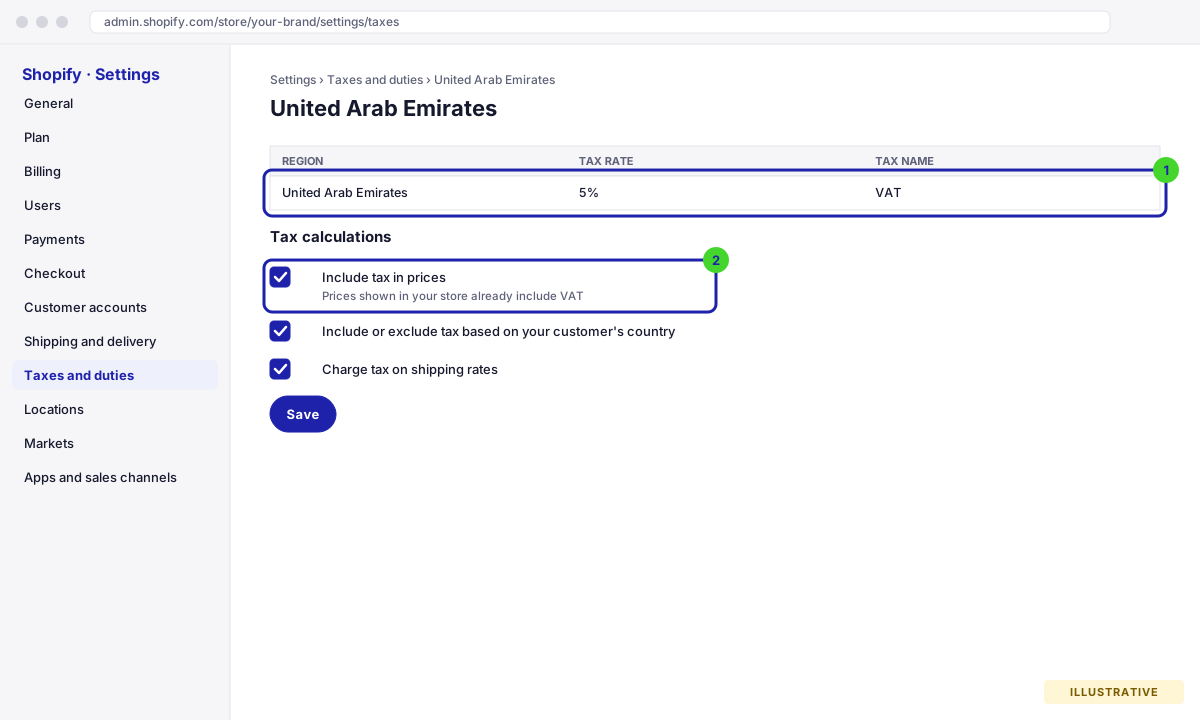
Settings → Taxes and duties → United Arab Emirates. Illustrative drawing of the screen, not a real screenshot. - Tick “Include tax in prices”
Still under Taxes and duties, tick Include tax in prices and Charge tax on shipping rates. If your main store also sells to countries where prices are shown without tax, tick Include or exclude tax based on your customer’s country as well.
- Set AED pricing: SettingsMarketsUnited Arab Emirates
Open the UAE market, go to Products and pricing, set the local currency to AED and choose fixed prices for this market. Enter the VAT-inclusive AED price for each SKU you selected for BorderPass. On a dedicated UAE store, simply set the store currency to AED in SettingsGeneral and enter the inclusive prices directly.
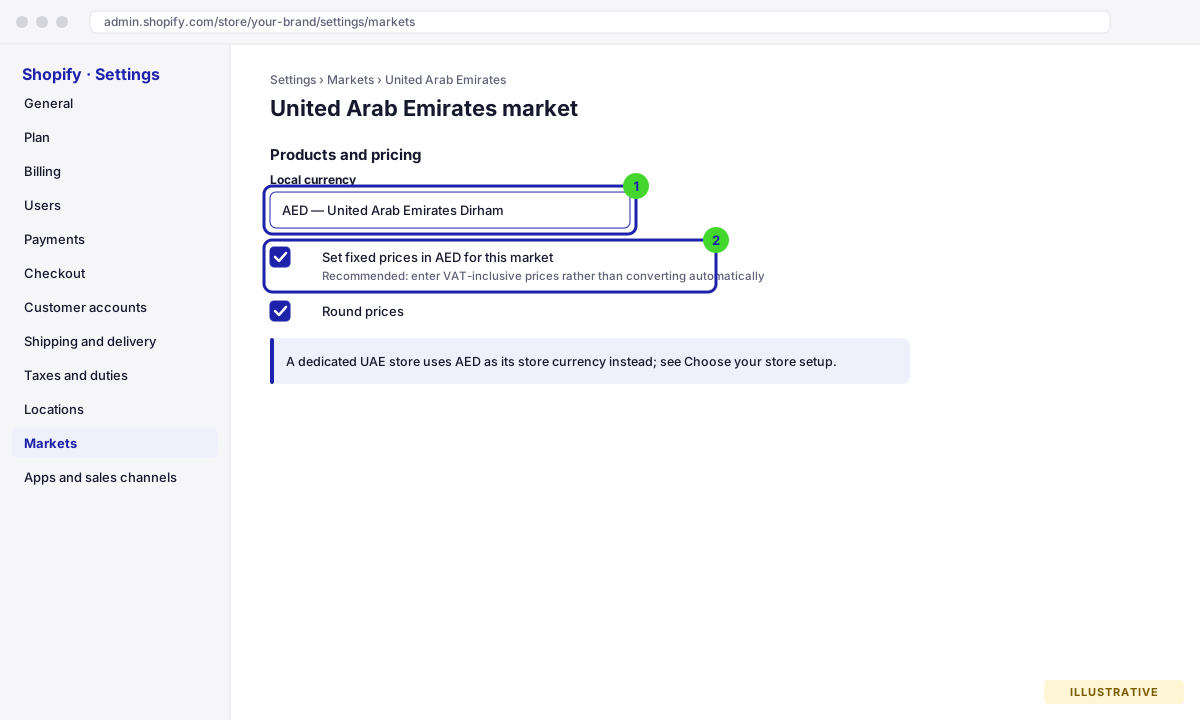
Fixed AED prices avoid rounding drift from exchange rates. Illustrative drawing of the screen, not a real screenshot. - Check a product page from the UAE
Use the market switcher (or a VPN) to view a product as a UAE customer. The price should read, for example, AED 105 with no “plus tax” note. At checkout, the summary should show Includes AED 5.00 VAT. Shopify’s own tax settings handle the VAT-inclusive display; the BorderPass app does not change prices.
- Enable taxes: WooCommerceSettingsGeneral
Tick Enable tax rates and calculations and save. A Tax tab appears. On a dedicated UAE store also set the currency to United Arab Emirates dirham (AED) on this page.
- Prices entered inclusive of tax: WooCommerceSettingsTax
Set Prices entered with tax to Yes, I will enter prices inclusive of tax. Set Calculate tax based on to Customer shipping address. Set both Display prices in the shop and Display prices during cart and checkout to Including tax.
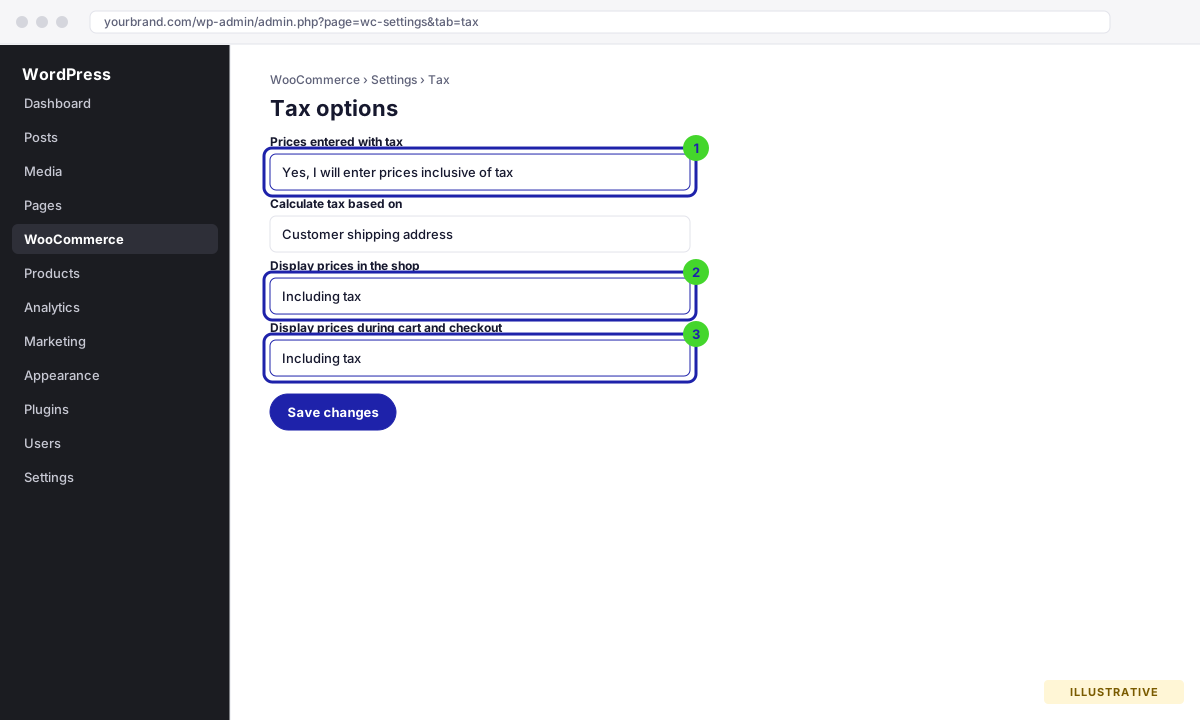
WooCommerce → Settings → Tax → Tax options. Illustrative drawing of the screen, not a real screenshot. - Add the UAE 5% standard rate
Open Standard rates, click Insert row and enter country code
AE, rate5.0000, tax name VAT, and tick Shipping. Save.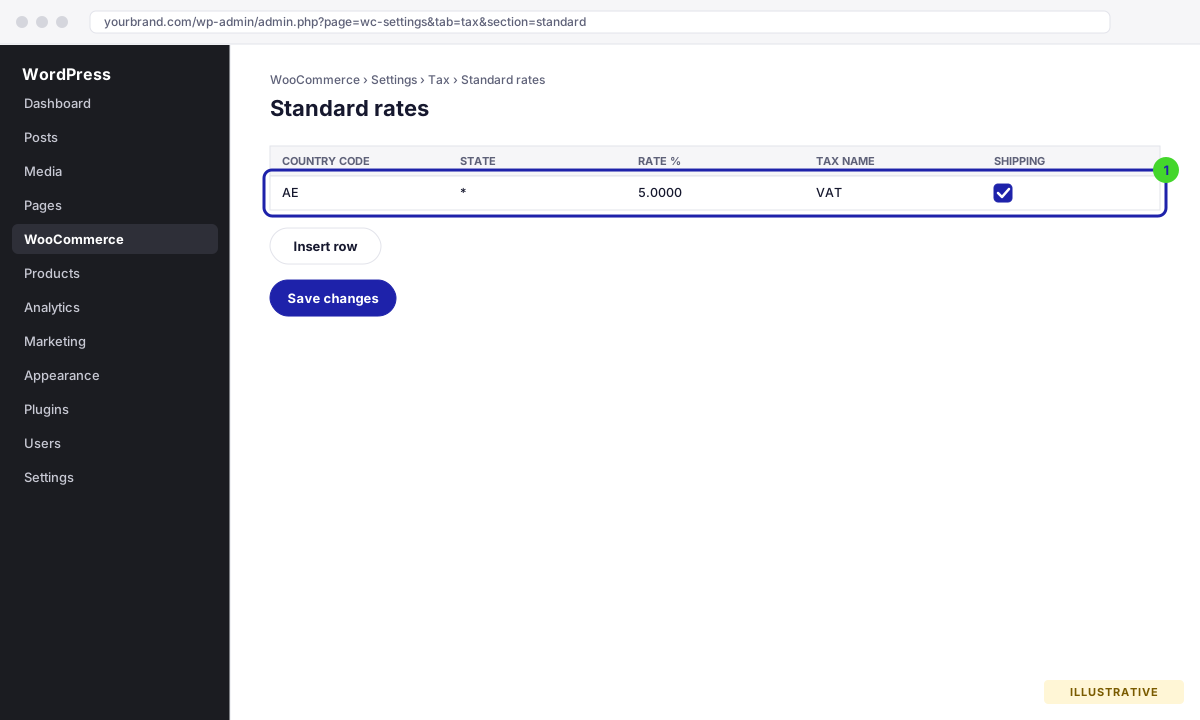
One row is enough: AE, 5%, VAT, applies to shipping. Illustrative drawing of the screen, not a real screenshot. - Enter AED prices including VAT
On a main store with a different base currency, install a multi-currency plugin that supports fixed per-currency prices, or agree with your account manager to run the UAE on a dedicated store. Enter the VAT-inclusive AED price on every BorderPass product.
- Check a product page with a UAE address
Add a product to the cart, enter a Dubai address at checkout and confirm the totals show (includes AED x.xx VAT) and that no extra tax is added on top. Once the BorderPass plugin is connected it adds the line Prices include 5% VAT. under the totals for UAE customers automatically.
- Look at the VAT checklist in the plugin
WooCommerceSettingsBorderPass shows a UAE VAT (5%) checklist: a tick when prices are entered inclusive of tax and when an AE rate of 5% named VAT exists, a warning otherwise. Both should be ticks before the gateway call.